// how it works
How Kompil Code works.
Kompil Desktop brings the collaborative editor, the VS Code engine, the terminal, containers and AI into one app, and adds what only an installed app can: a local terminal, the system vault for keys and offline work. The web version uses the same interface, limited to editing and chatting.
01 // how it works
Live editing, without conflicts
Each person edits their own copy of the file and changes come together by themselves, right away, without conflicts and without locking the file for anyone. If the connection drops, you keep typing; when it comes back, everything falls into place.
- Named cursors and everyone's presence
- Tested with 12 people in the same file
- Suggestion mode to review before applying
- You typeIn your copy of the file, without waiting for the network
- The team sees it right awayWith your cursor and your name
- No conflictsSimultaneous edits come together by themselves
- Offline tooEverything falls into place when you're back online
02 // how it works
Embedded VS Code engine
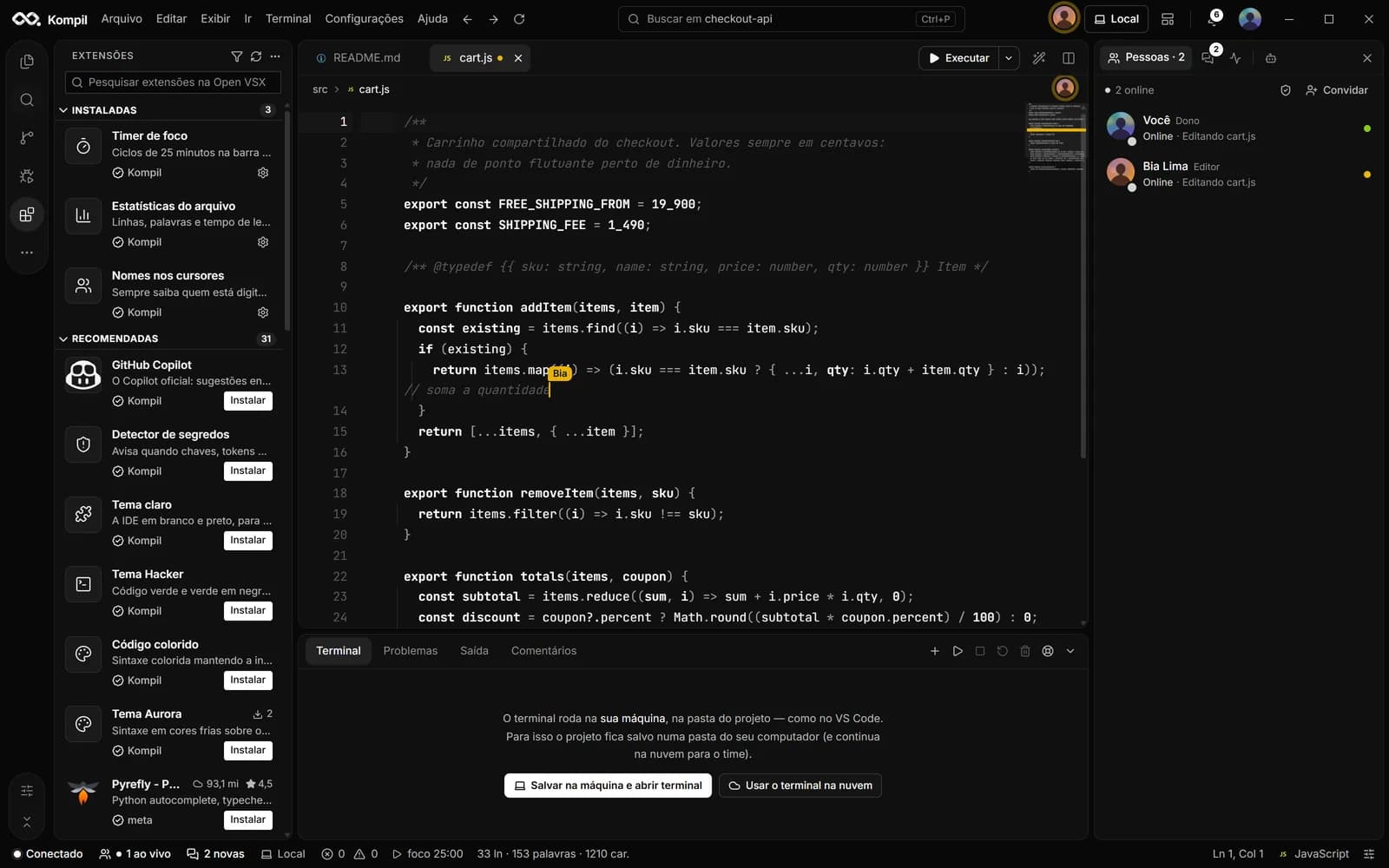
A VS Code engine runs inside Kompil for extensions: the Extensions screen installs from Open VSX, and extension tools show up in the left bar. The Claude panel shows the official Claude Code extension, the same one as in VS Code. The engine never opens as a separate window and follows the chosen theme.
- Extensions from Open VSX
- Official Claude Code in the Claude panel
- Themes apply to extension views too
03 // how it works
Kompil Engine: containers without Docker Desktop
On Windows, the app creates and maintains its own Linux environment on WSL 2, compatible with Docker commands. It runs isolated from the rest of the computer, and published ports show up on localhost. On macOS and Linux, the app uses the Podman or Docker already installed.
- Compose and Dockerfile
- No admin rights beyond WSL
- Ports on localhost
- Your projectDockerfile and Compose
- Kompil EngineDocker commands, without Docker Desktop
- WSL 2Its own isolated Linux environment
- Windows 10/11Published ports on localhost
Each layer runs on top of the one below.
04 // how it works
Run on your machine or in the cloud
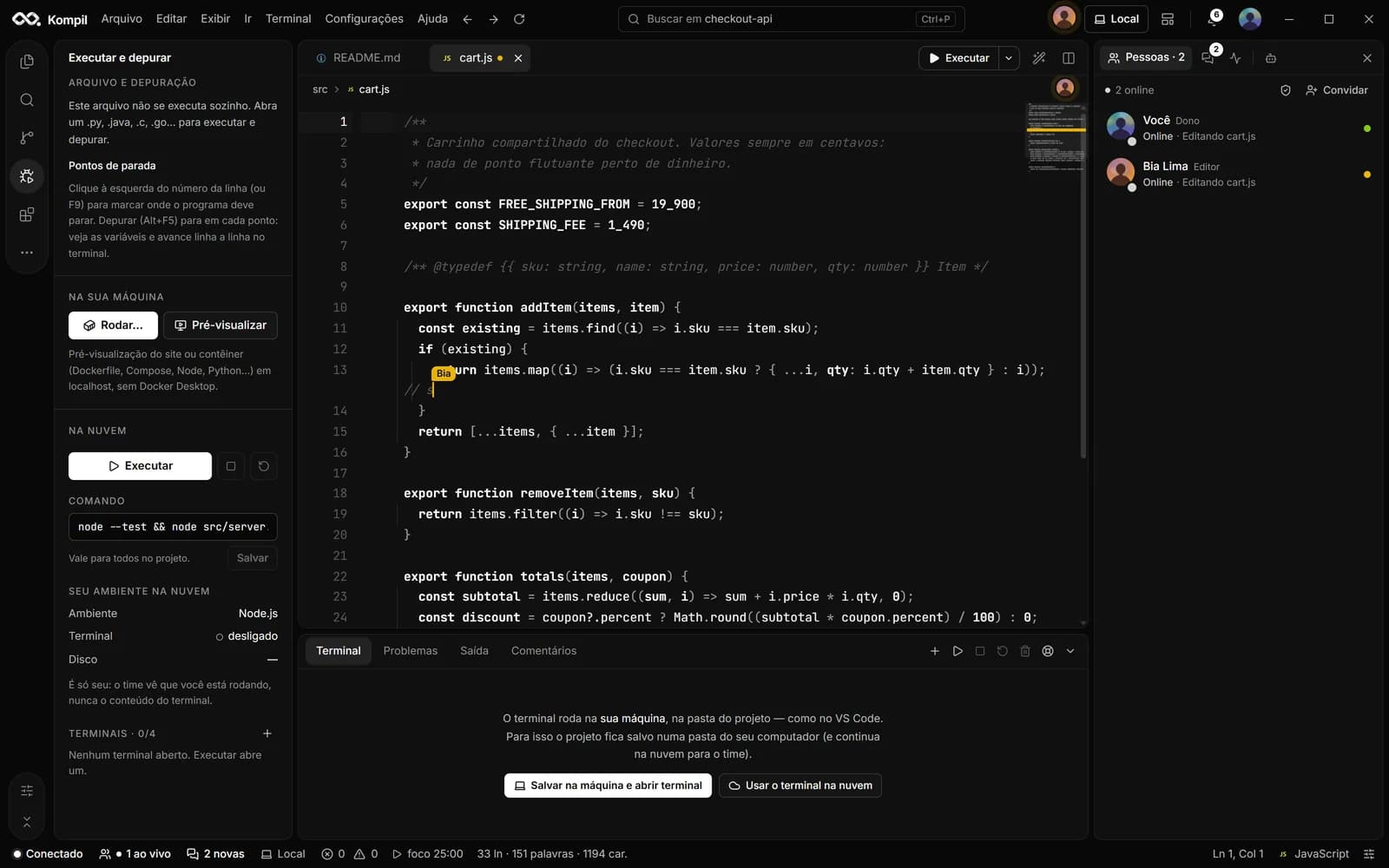
With Save to this computer, every change — yours or your team's — is written to a folder on your computer, and what changes in the folder goes back to the project. The local terminal runs in that folder, like VS Code's, and several projects can run at once. In the cloud, each person gets a container of their own per project, on the Business and Enterprise plans.
- .git, node_modules and builds stay on your disk only
- Syncs both ways
- Cloud environment with Node, Python, Java, Go, Rust, PHP and Ruby
05 // how it works
AI with your own key
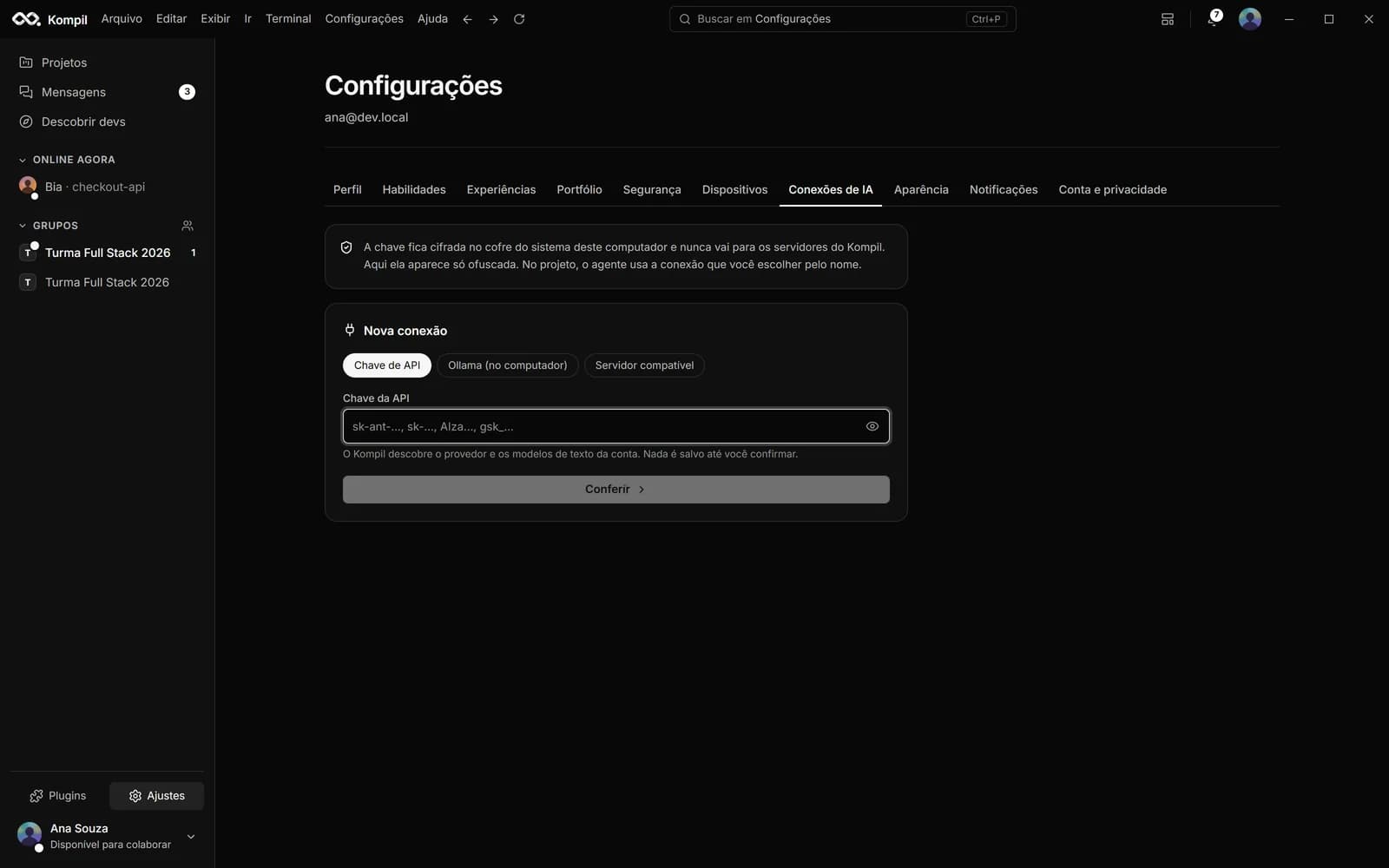
The API key is checked with the provider itself and stored encrypted in the system vault. The page never sees the key and it doesn't go through Kompil Code's servers: calls leave your computer and usage is billed to your provider account. Secret files, like .env and SSH keys, are not read or sent to the AI.
- Anthropic, OpenAI, Gemini, OpenRouter, Groq, DeepSeek, Mistral and xAI
- Any OpenAI-compatible API
- Ollama on your own computer
06 // how it works
Security and privacy
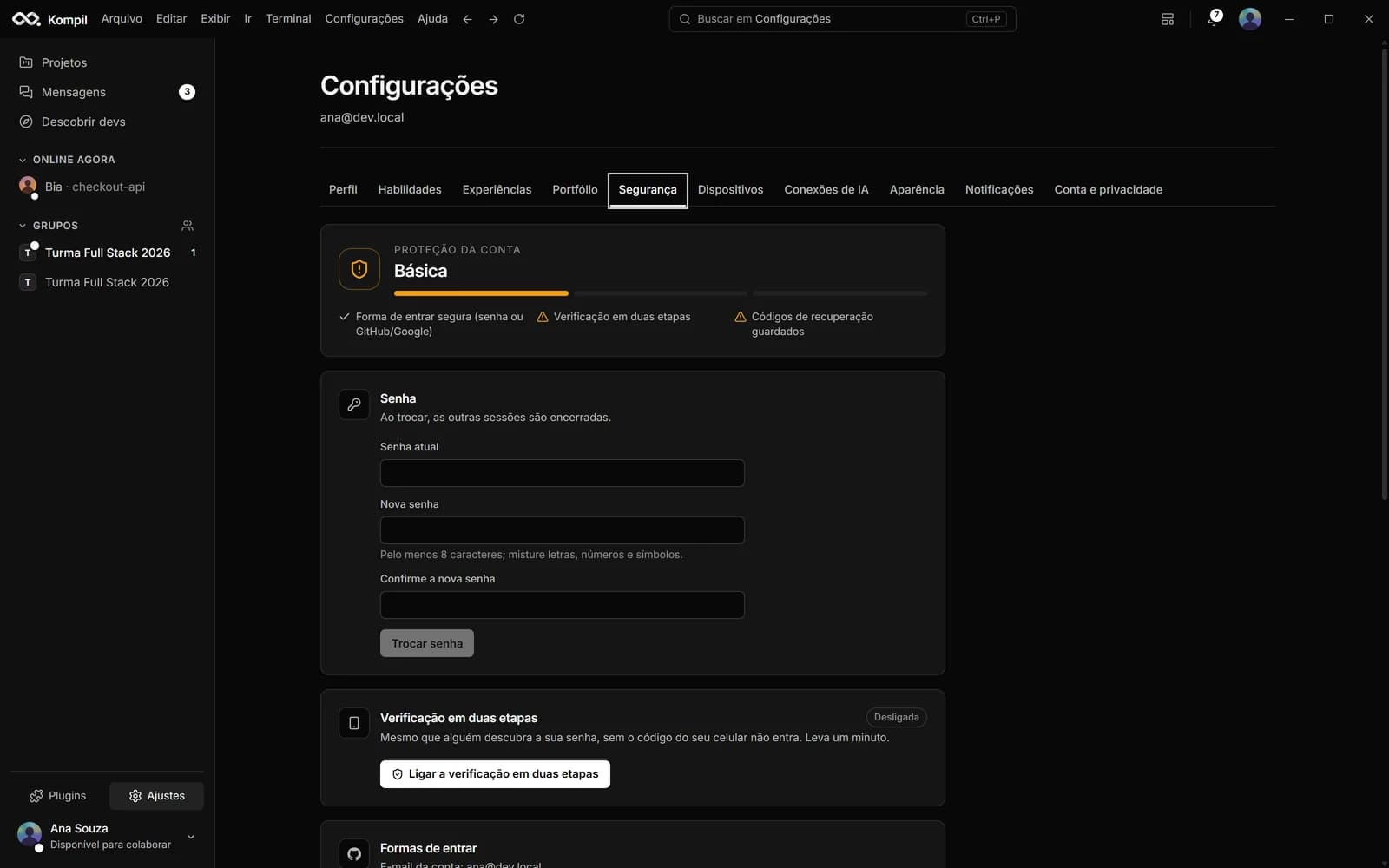
Messages, project code (including .env), files and images are stored encrypted. Accounts have two-step verification, email confirmation by code and progressive lockout against password guessing. Setup shows the Terms of Use and the Privacy Notice (LGPD, Brazil's data protection law), and the installer is signed, with its hash published on the Download page.
- Without the “View .env” permission, you don't receive the file
- Viewers can't use AI or the terminal, or copy code
- Sign out of every device and see the account's recent activity
07 // how it works
No internet, work goes on
The interface and projects open even without internet. Edits are kept on the device and sync when the connection comes back. Only live collaboration and external services — AI, Git and chat — wait for the network.
- Projects editable offline
- Syncs by itself when the connection returns
- Signing out clears what was stored
- Open the appInterface and projects open without internet
- Edit offlineEdits are kept on the device
- Back onlineEdits sync with the team
- Waiting for the networkLive collaboration, AI, Git and chat
// run anywhere
On your machine, in a container or in the cloud.
The code belongs to the team; running it is up to each person. Choose where — and how many projects at once.
Several projects at once
Each project runs with its own Live Server and its own container, each on its own port. The Runs panel, on the title bar, shows everything that's running.
- Live Server on localhost, reloading on every change
- See and stop each run
Containers without Docker Desktop
On Windows, the Kompil Engine runs your Dockerfile and Compose in its own Linux environment on WSL 2, with the same Docker commands. Ports show up on localhost.
- Compose and Dockerfile
- No admin rights beyond WSL
Cloud environment
A container of your own for each project, with a terminal and the project's run command, ready for Node, Python, Java, Go, Rust, PHP and Ruby. The team sees that you're running, never your terminal.
- On the Business and Enterprise plans
- On the web version too
Connected to your tools
Git with GitHub, GitLab, Bitbucket, Azure DevOps, Gitea or any HTTPS server. The agent deploys through the Vercel, Netlify or Firebase CLI.
- Open VSX extensions
- Import from VS Code, Cursor, VSCodium and Windsurf
// free account
Join the orbit.
Creating an account is free. Download the app for Windows or sign in on the web to edit and chat from anywhere.
- Your AI key stays yoursEncrypted in your system's vault, not on the server.
- Works offlineWith the project saved on your machine, everything syncs later.
- VS Code extensionsYour themes, snippets and extensions come with you.
- Updates itselfNew versions download in the background.
Windows 10 and 11 (64-bit) · macOS and Linux coming soon